Scheduled messages
Scheduled messages help a group or channel send plain-text messages at fixed intervals.
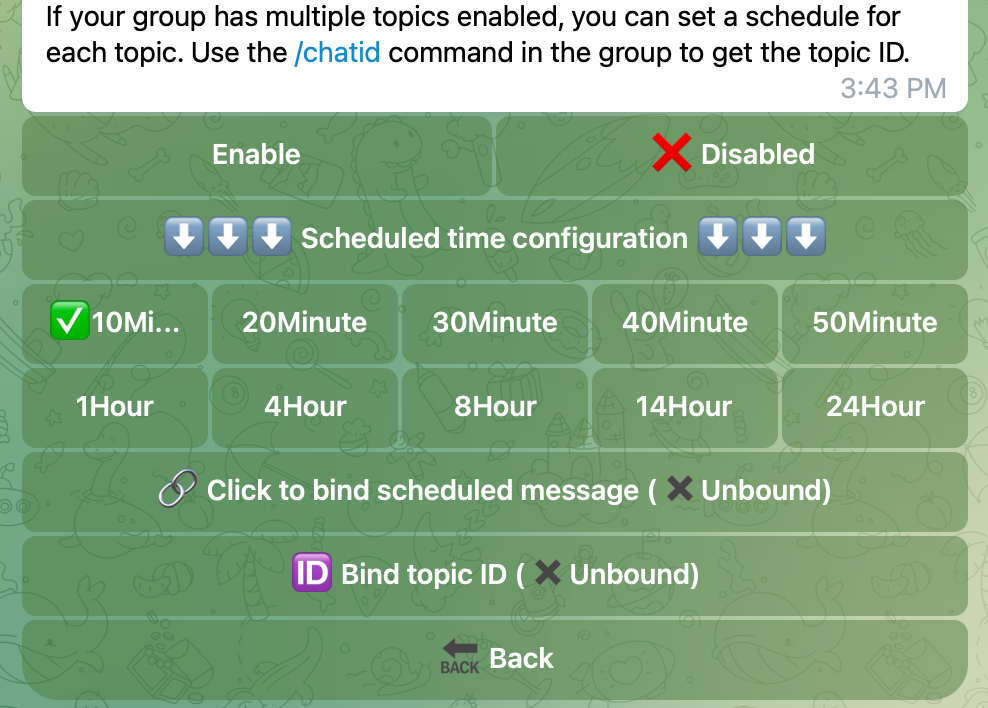
Each scheduled message can have its own text, interval, enabled state, optional topic ID, and optional bottom URL buttons.
What you can configure
- Message text
- Repeat type: minutes or hours
- Repeat interval
- Enabled or disabled state
- Optional topic ID
- Optional bottom URL buttons
This is useful for recurring reminders, group rules, channel notices, or periodic links.
How to use
- Open
/manage. - Select the group or channel.
- Open Scheduled Messages.
- Add a scheduled message.
- Enter the message text.
- Choose the repeat type and interval.
- Optionally enter a topic ID.
- Optionally add bottom URL buttons.
- Save the message and enable it when ready.
Topic ID
If the target group uses forum topics, you can enter a topic ID to send the scheduled message into a specific topic.
Leave the topic ID empty to send the message to the default chat stream.
Bottom buttons
You can attach URL buttons under each scheduled message.
Each button needs:
- Button text
- Button URL starting with
http://orhttps://
Buttons are optional. If no buttons are configured, the scheduled message will be sent as normal text.
Notes and limits
- Scheduled messages are plain text
- Each group or channel can configure up to 3 scheduled messages
- Message text can be up to 1000 characters
- A message can have up to 20 bottom buttons
- Choose a longer interval if the message is visible to many users, so the chat is not disturbed too often